Setting Up Your First Agent#
Once Nebula is running, you can create an agent and start working with it in under a minute.
Create an Agent#
- Open the Nebula web interface
- Click + New in the bottom-left corner and select Agent
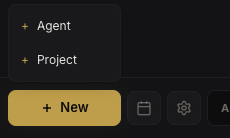 Create menu
- Fill in the agent form:
- Name — unique identifier within your org
- Role — job description injected into the system prompt (e.g., "Senior backend developer focused on Node.js APIs")
- Emoji — visual identifier shown in the sidebar and chat
- Model — which model to use (defaults to
claude-sonnet-4-6) - Runtime — which CLI to execute with (auto-selects if only one is available)
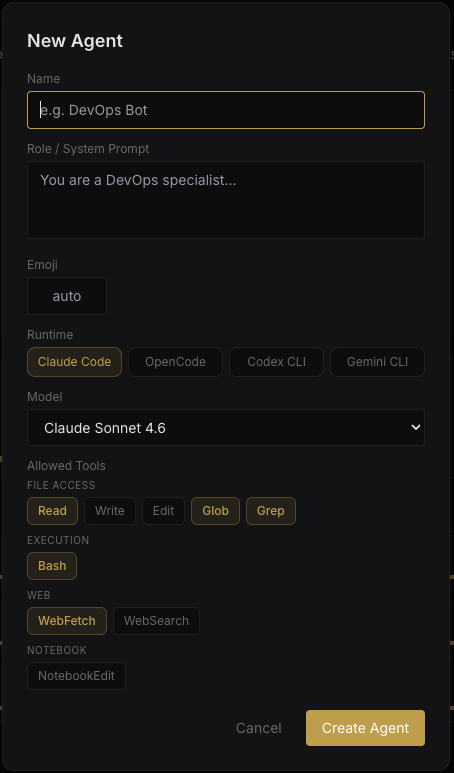 Agent creation form
The role description directly affects how the agent behaves — be specific about expertise, responsibilities, and constraints.
Once created, the agent appears in the sidebar. As you add more agents, each shows its emoji, name, and last message preview.
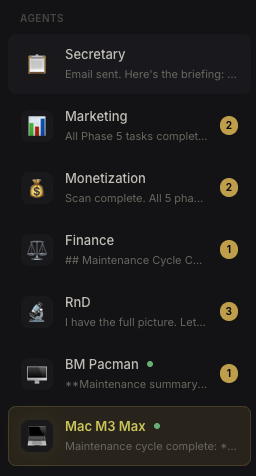 Agent sidebar with multiple agents
Configure a CLI Runtime#
Each agent needs a CLI runtime to execute tasks. Go to Settings → Runtimes and verify at least one runtime is detected.
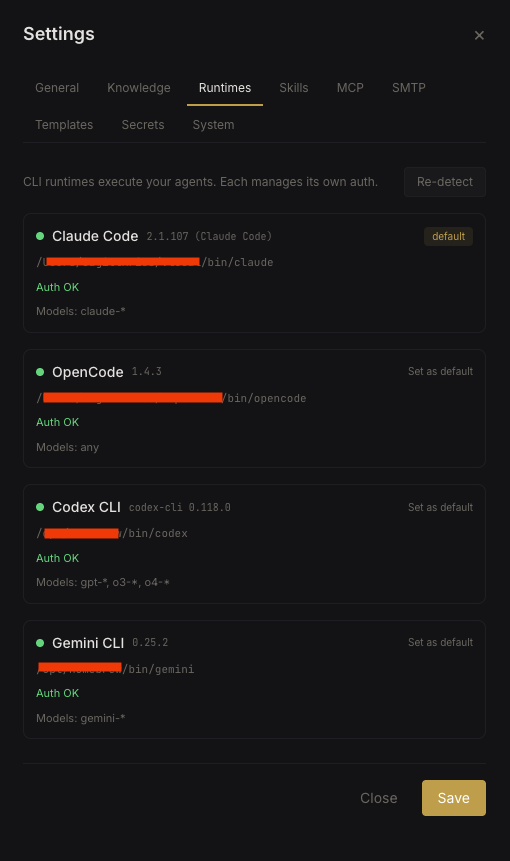 Runtime detection in settings
Nebula auto-detects installed runtimes on startup. If yours isn't showing up, verify it's available on $PATH inside the Docker container:
docker exec -it nebula which claudeYou can set an org default runtime that all agents use unless overridden individually.
Run Your First Conversation#
Open a conversation with your agent by clicking its name in the sidebar, then type a message.
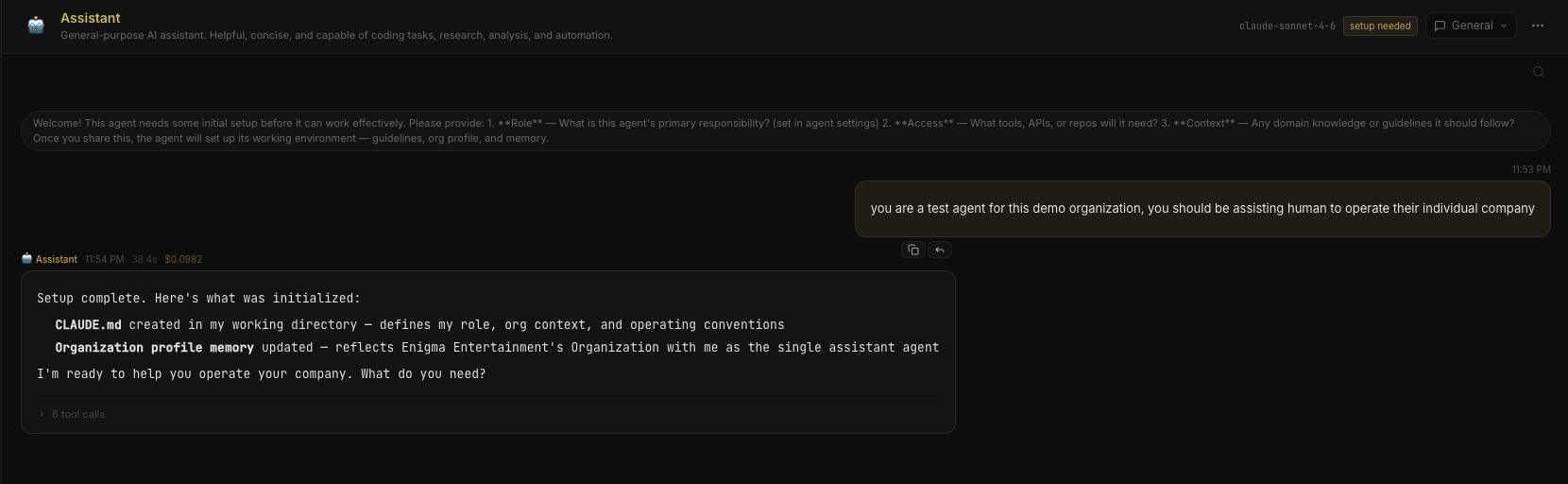 Agent chat interface
The agent will:
- Receive your message along with its assembled context (system prompt, skills, memory, MCP configs)
- Spawn a CLI session via
node-pty - Stream output back to you in real-time via WebSocket
Tip: Agent sessions are persistent. The CLI session stays alive between messages, so the agent retains full context without re-prompting.
What's Happening Under the Hood#
Nebula uses a Soul/Body architecture:
- Soul — the agent's identity: name, role, memory, skills, secrets
- Body — the execution environment: a CLI runtime session tied to a specific conversation, project, or task
One agent (soul) can have multiple concurrent sessions (bodies) across different projects and conversations. The context for each session is assembled fresh using Dynamic Context Reconstruction.
Next Steps#
- CLI Runtimes — supported runtimes and how to add new ones
- Conversations — multiple conversations, drafts, and real-time streaming
- Custom Skills — teach agents to interact with external services
- Agent Memory — how persistent memory works