Conversations#
Each agent can have multiple conversations — separate threads that maintain their own context and session history. This lets you use the same agent for different tasks without mixing context.
Multiple Conversations#
Click the conversation selector at the top of the chat view to switch between conversations or create a new one.
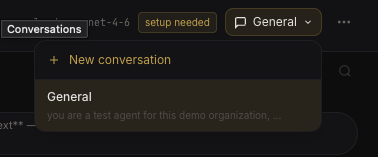 Conversation selector
Each conversation:
- Has its own persistent CLI session — messages within a conversation resume the same process
- Maintains a separate context window — no bleed between conversations
- Can be renamed for easy identification
- Shows unread badges when the agent responds while you're in another conversation
Every agent starts with one default conversation. You can create as many as you need, but at least one must always exist.
Real-Time Streaming#
Messages stream back in real-time via WebSocket. You'll see:
- Typing indicators while the agent is processing
- Tool usage (file reads, searches, bash commands) displayed inline as the agent works
- Markdown rendering with syntax highlighting for code blocks
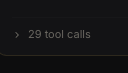 Tool history in chat
Image Attachments#
You can attach images to messages (PNG, JPG, GIF, WebP — max 10 MB per image). Paste from clipboard or use the attachment button.
Images are uploaded to the agent's storage and passed to the CLI runtime as part of the message.
Draft Preservation#
Unsent message text is preserved per agent. If you switch to another agent mid-draft, your text is still there when you come back.
Session Management#
Each conversation maps to a CLI session. You can reset the session from the agent settings to clear context and start fresh — the conversation history remains, but the CLI process is restarted.
Note: Resetting a session is useful when an agent gets stuck in a bad state or when you want to force a clean context without losing message history.