Remote Agents#
By default, agents execute on the Nebula server machine. Remote execution lets an agent run on an external machine — your workstation, a build server, or any machine with a CLI runtime installed. The agent's identity (skills, secrets, MCP config, system prompt) stays on the server; only execution happens remotely.
How It Works#
- The agent is set to remote execution mode in Agent Settings
- A remote client (desktop app or CLI) connects to Nebula via WebSocket
- When the agent receives a message or task trigger, Nebula sends the execution request to the connected remote client
- The remote client spawns a local CLI process, streams output back to Nebula
- Nebula broadcasts the response to the web UI in real-time
Skills, MCP configs, secrets, and system prompt are synced to the remote machine on every execution — the remote client always has the latest configuration.
Remote Client Options#
Agent App (Desktop — Tauri)#
A native desktop application for macOS and Windows. Best for machines with a display.
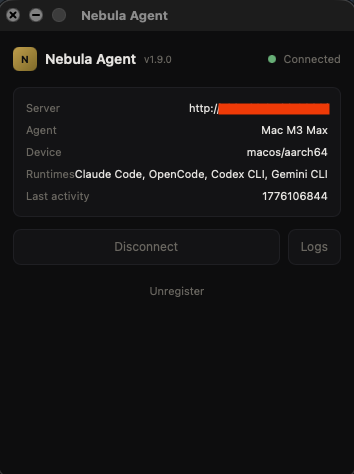 Agent App interface
- Download the
.dmg(macOS) or.msi(Windows) from the Nebula releases - Enter the server URL, agent ID, and registration token
- The app shows connection status, device info, and Claude Code management
Agent Client (CLI — headless)#
A Node.js CLI for headless servers and CI machines.
# Install from source
cd agent-client && npm install -g .

# Or install the .pkg (macOS) / .zip (Windows) from releases

# Register and start
nebula-agent register --server https://nebula.example.com --agent-id <id> --token <token>
nebula-agent start
Setting Up Remote Execution#
- Open Agent Settings → General (bottom section)
- Set execution mode to Remote (external machine)
- The connection status and registration instructions appear
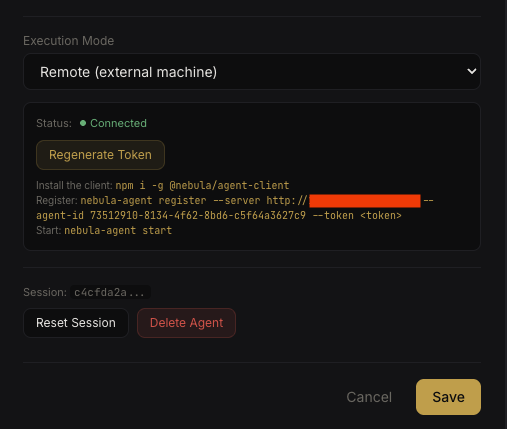 Remote execution setup with token and instructions
- Copy the registration commands shown and run them on the remote machine
- Once connected, the status shows Connected with device info
The Access tab also shows NAS path configuration for agents that need filesystem access:
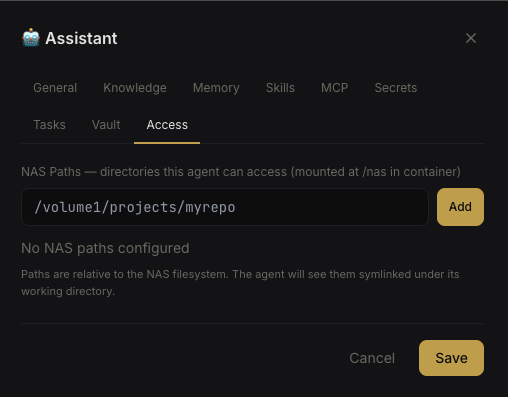 Agent access settings
Connection Status#
Remote agent connection status is broadcast in real-time to all org members:
- Connected — remote client is online and ready
- Disconnected — no client connected, agent cannot execute
Device information (hostname, platform, architecture) is captured on connection and displayed in agent settings.
What Runs Remotely#
The remote machine needs:
- A supported CLI runtime (Claude Code, OpenCode, etc.) installed and authenticated
- Network access to any MCP servers configured for the agent
- Network access back to the Nebula server (WebSocket)
The remote machine does not need:
- Access to Nebula's database or filesystem
- Any pre-configured skills or MCP configs (synced on each execution)